Last Updated on August 8, 2026 at 10:58 pm
Here is an Excel stock screener to scan & filter Indian stocks with multiple criteria. Cap-wise screening & sector-wise screening possible. It gets data from Value Research and allows the user to screen capitalization-wise and sector-wise.
I have always wanted to build a stock screener and hence this sheet. I am well aware that they are pretty good online screeners available. What is being offered is a choice, and I am confident that the Excel screener will evolve into something at least useful to a small group of users, if not as a unique tool. I seek your help in evaluating this sheet and in making it better.
Those who are comfortable with using Excel’s data sort options can screen in several ways with this sheet.
For users who are not familiar with the sort options, several simple stock screens are incorporated after consultations with Krishna Kishore – tyroinvestor and Indraneal Balasubramanium – cognicrafter.
🔥Secure your future with our Robo-advisory tool trusted by over 3,500 investors and advisors. From effortless retirement planning to funding your children’s biggest dreams, turn your financial goals into reality. 🔥
Subscribe for money management solutions via email! (Link takes you to our email sign-up form) Join 32,000+ readers in our community.
👉 New Tool Alert! NaviPlan: A Privacy-Focused Multi-asset Tracker and Goal Planner 👈
They are my go-to guys when it comes to stock analysis. They are capable of simplifying valuation quite efficiently for a low-attention-span dummy like me.
Excel Stock Screener: How to use Video
This video may help build your own screens.
Capitalisation-wise stock screening
This is the screenshot of the cap-wise stock screener
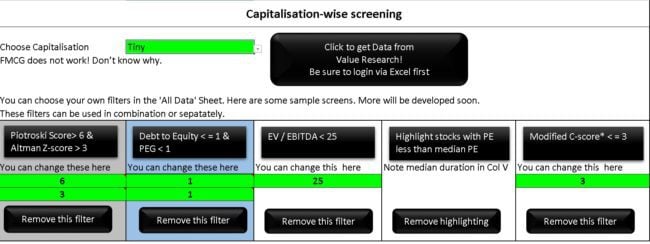
In order to use the tool, one must first login to Value Research via Excel. Necessary steps are given below.
As you can see there are five sample screens which can be used independently or combined with each other. Other sort options can also be enabled from the data sheet.
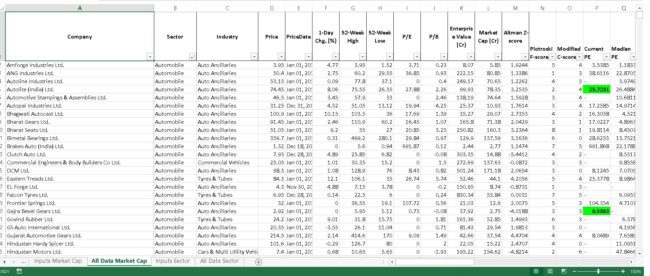
The green cells refer to stocks with current PE lesser than median PE (5Y or 3Y -duration listed).
The following screens are available
Piotroski Score – Higher the score, better the strength of the company and confidence in its operation. VR article on the score.
Altman-Z Score – Higher the score, lower the probability of bankruptcy. This is how VR computes it
Modified C-Score – lower the score, lower the chance of accounting manipulation. This is how VR computes C-Score.
Debt to Equity – a measure of debt used by the company to operate. Lower is typically less risky. Less than one, preferred by many.
PEG – The PE ratio divided by annual EPS growth. Less than one, could represent undervalued stock.
Enterprise Multiple EV/EBITDA – Compares EBITA, the earnings before interest, taxes, depreciation and amortization with EV, the enterprise value. Low values could mean undervaluation. However, ‘low’ is sector dependent.
Current PE less than Median PE – Median is the mid-point of a distribution of values (PEs in this case). Maybe used for solid companies (thanks Krishna).
Current PE more than Median PE – Maybe used for small companies which are expanding, provided other checks are in place.
Sector-wise stock screening
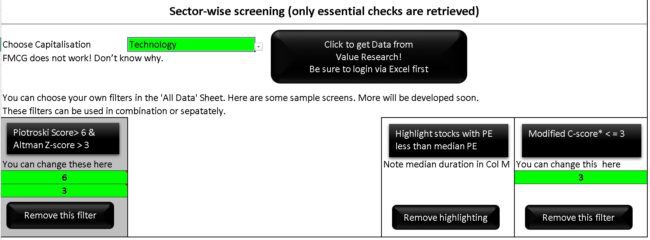
In this case, only essential checks are retrieved.
Download the freefincal Excel Stock Screener Sep 2018 Version 3 (with Joel Greenblatt Magic Formula Screener)
Download the freefincal Excel Stock Screener Dec 2017 Version 2 (included screening by index and an error in FMCG sector download, thanks to feedback from users)
Download the freefincal Excel Stock Screener Jan 2016 Version 1
Also check out the individual stock analysis sheet with multiple valuation techniques: Automated Stock Analysis V9: Earnings Growth Estimation
Guest post by Krishna: A Guide to Understanding Stock Screeners
Guest post by Indraneal: How to Build a Stock Screener
Note: Please do the following to login to Value Research
- Open blank excel
- Select Data in the menu
- Click get external data and then from web
- A browser window will open and there will annoying script error messages. Dismiss them.
- Then Go to VR online in that window and go to main page. There will annoying messages. Dismiss them.
- Click on login. If you are not able to do so. Stop the page from downloading and then click
- Login with your email (preferable) and click on remember me.
- Now you can exit the browser window and start using the screener. It should work fine now.